

Get in Touch
WordPress to Webflow Migration: How to Move Without Losing SEO


Moving from WordPress to Webflow can be a smart upgrade for a marketing site. Webflow can make it easier to manage pages, launch new landing pages, clean up the CMS, and reduce plugin maintenance.
But a WordPress to Webflow migration is not just a platform switch. It is a website migration, a CMS rebuild, an SEO preservation process, and a launch QA project.
Short answer: you can migrate from WordPress to Webflow without losing SEO if you inventory valuable URLs, map content and metadata, build redirects before launch, test indexation and tracking, and monitor Search Console after launch.
At Quovo, we have seen this firsthand on WordPress to Webflow projects where the hard part was not rebuilding pages. The hard part was protecting URLs, CMS content, redirects, SEO metadata, forms, analytics, and tracking before launch.
This guide focuses on the highest-impact checks that protect organic traffic and lead generation during a WordPress to Webflow migration.
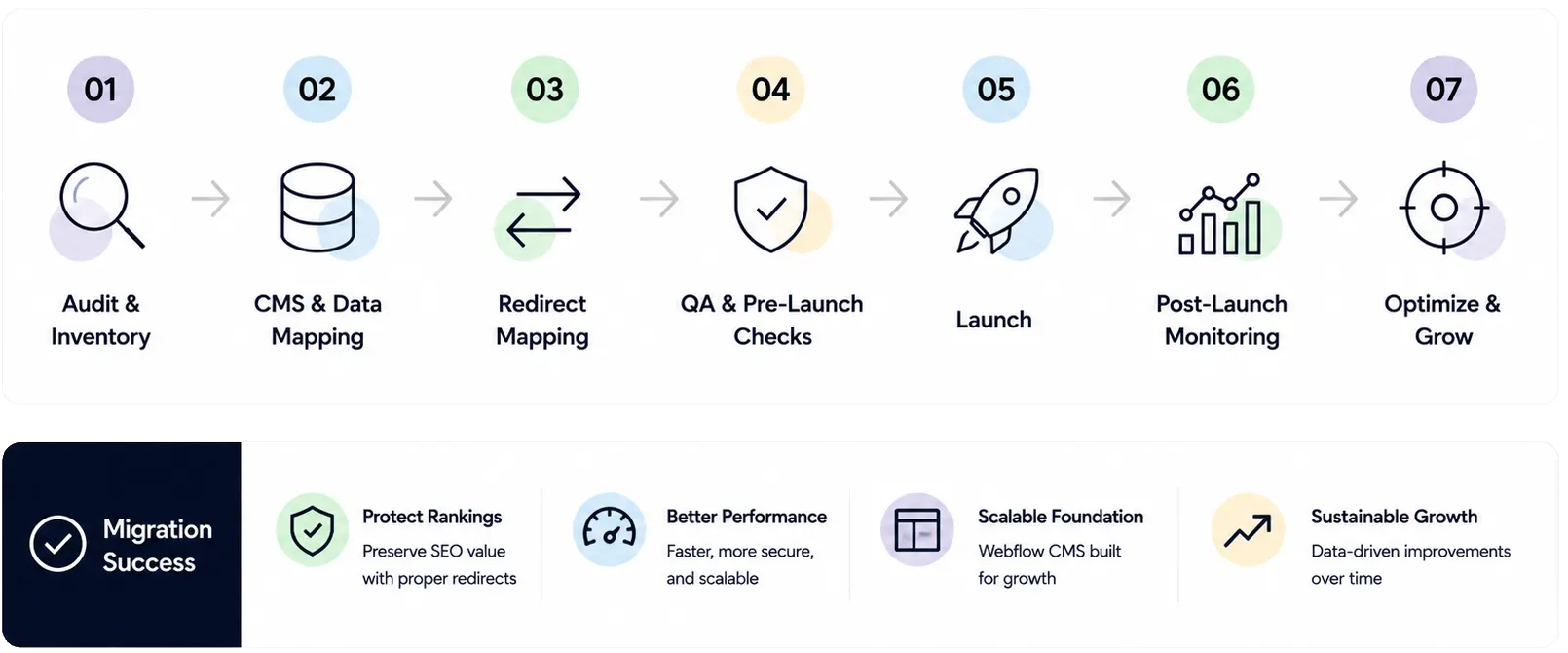
Why SEO Risk Matters In A WordPress To Webflow Migration
SEO risk usually appears when the new Webflow site is treated like a fresh build instead of a migration from an existing search footprint.
Your WordPress site may have years of accumulated value in places that are easy to overlook:
- Blog posts that bring in organic visitors.
- Pages with backlinks from other websites.
- Service pages that generate leads.
- Metadata stored in Yoast, Rank Math, or another SEO plugin.
- Internal links that help Google understand the site.
- Redirects, schema, tracking scripts, forms, and CRM connections.
If those assets are not carried over intentionally, rankings and traffic can suffer after launch.
Webflow is not the risk by itself. A weak migration process is the risk. A safe WordPress to Webflow migration starts before design or development decisions are locked in. You need to know which URLs matter, how content will map into Webflow CMS, which metadata needs to be recreated, which redirects are required, and how you will validate performance after launch.
For teams with meaningful traffic or lead volume, a structured WordPress to Webflow Migration process helps protect the organic visibility the old site already earned.
Planning a WordPress to Webflow migration?
Quovo can review your URL inventory, content priorities, and redirect risks before the Webflow build begins.

Start With A WordPress SEO Inventory
Before building in Webflow, create an inventory of the WordPress site. This does not need to become a giant audit document, but it should identify the pages and SEO assets that matter most.
At minimum, collect:
- Current URL.
- Page title and meta description.
- Page type, such as blog post, service page, landing page, or resource.
- Organic traffic and impressions.
- Keywords or rankings, if available.
- Backlinks or referring domains.
- Conversion value, such as form submissions or assisted pipeline.
- Current status, such as keep, improve, merge, redirect, or remove.
The inventory gives you a map of what must be protected during the migration. In practice, this should happen before Webflow templates are finalized. If you discover late that important WordPress content needs extra CMS fields, the build may need to be reworked.
Identify URLs that already have SEO value
Not every WordPress page carries the same risk. Some pages may be outdated, low traffic, or irrelevant. Others may be responsible for a large share of organic visibility.
Start with the URLs that already have value:
- Organic landing pages in Google Analytics.
- Pages with clicks or impressions in Google Search Console.
- Blog posts that rank for useful keywords.
- URLs with backlinks.
- Pages that contribute to conversions.
- High-intent service or comparison pages.
These pages should receive the most careful treatment. In many cases, you will either keep the same URL structure in Webflow or create a precise 301 redirect from the old URL to the new one.
On a migration like MonitorQA, where 120+ blog posts needed to move from WordPress into Webflow, the inventory stage helps separate content that should be preserved from content that should be improved, merged, or redirected. That decision is hard to make accurately if the team starts with design screens instead of content and URL data.
Decide what to keep, improve, merge, or redirect
A migration is also a chance to clean up the site. You do not have to move every WordPress page exactly as it is.
Some content should be preserved because it performs well. Some should be improved because the topic still matters but the page is weak. Some should be merged because multiple posts compete for the same intent. Some should be redirected because the old page no longer deserves a direct rebuild.
If your WordPress site already drives traffic or leads, this is a good point to get a migration readiness review before finalizing the Webflow build.
Map Content, Metadata, And URLs Before Building In Webflow
Once you know what needs to move, plan how it will live in Webflow. This is where many migrations become risky. Content, metadata, and URLs are often handled separately, but they need to be planned together.
For example, a WordPress blog post may include the visible article content, a slug, a featured image, categories, tags, author data, SEO title, meta description, Open Graph image, schema settings, and internal links. Some of that data may live in WordPress itself. Some may live in plugins or custom fields.
If the Webflow CMS is built before this is understood, the team may discover too late that important fields are missing.
Map WordPress content into Webflow CMS fields
Webflow CMS works best when the content model is intentional. Do not blindly recreate years of WordPress categories and tags if they are messy or unused.
Instead, decide which fields your future marketing team actually needs. A B2B site might need collections for blog posts, authors, categories, resources, case studies, or landing page templates. A simpler site may need less.
Use a compact mapping table before importing or rebuilding content:
This planning step also helps avoid future CMS frustration. A good Webflow CMS structure should support the way your team will publish, update, filter, and reuse content after launch.
Build a redirect map for changed URLs
Redirects are one of the most important parts of a WordPress to Webflow SEO migration. If a URL changes and there is no redirect, users and search engines may hit a 404 instead of the new page.
Every changed URL should be mapped before launch:
Prioritize redirects for pages with traffic, backlinks, rankings, or conversion value. Then test them before the new Webflow site goes live.
On larger content migrations, like a 400+ article WordPress to Webflow move for Flotek, redirects stop being a small launch task. They become one of the main systems that protects organic visibility.
Keeping the same URL structure can reduce migration risk, but it is not always the best decision. If the old WordPress structure is messy, duplicated, or built around categories that no longer matter, changing URLs can be justified as long as redirects are mapped and tested.
Recreate SEO metadata deliberately
Do not assume SEO metadata will move automatically.
Before launch, review and recreate the important metadata in Webflow:
- SEO titles.
- Meta descriptions.
- Open Graph titles and images.
- Image alt text.
- Canonical tags, if used.
- Schema or structured data, where relevant.
- Any plugin-dependent fields from Yoast, Rank Math, or custom WordPress setups.
You do not need to preserve weak metadata exactly. If a page has poor titles or descriptions, improve them. But the decision should be deliberate, not accidental.
SEO preservation is not a final checklist. It should influence the Webflow CMS, URL structure, content decisions, redirect map, and launch QA before development is finished.
Need a second set of eyes before launch?
Get a CMS and redirect map review to catch migration issues before they become SEO problems.
Run A Pre-Launch SEO And Tracking Check
Before switching DNS or publishing the Webflow site, run a compact launch check. This is the moment to catch issues while they are still easy to fix.
Common mistake: teams test the design but not the migration system. A Webflow site can look ready while redirects, metadata, analytics events, or CRM forms are still incomplete.
Check SEO basics before launch
The pre-launch SEO check should confirm that important pages are crawlable, indexable, and connected properly.
Review:
- Indexation settings.
- Sitemap setup.
- Robots rules.
- Redirects.
- Important page titles and descriptions.
- Internal links.
- Mobile and responsive behavior.
- Broken links.
- Important images and alt text.
One common mistake is launching with staging settings still active, such as noindex rules or blocked pages. Another is publishing the new site before redirects are ready. Both can create avoidable SEO problems.
Check forms, analytics, and conversion paths
SEO preservation is not only about rankings. If organic traffic survives but forms, analytics, or CRM connections break, the migration still creates business risk.
For lead-generation sites, migration QA should include forms, CRM routing, and analytics events. A site can keep its traffic but still lose business visibility if conversions are no longer tracked correctly.
That is why projects with HubSpot, PostHog, CRM, or conversion tracking requirements need those systems planned before launch, not added later. In Quovo projects like Oakland Creek and UpsellPlus, the tracking and integration layer was part of making the website useful for the marketing team after launch.
Before launch, test:
- Contact forms.
- Demo or consultation forms.
- Newsletter signups.
- Thank-you pages.
- Analytics scripts.
- Conversion events.
- CRM or marketing automation integrations.
Use this short checklist before launch:
- Contact forms.
- Redirects tested.
- Staging indexation checked.
- Sitemap ready.
- Core metadata reviewed.
- Forms tested.
- Analytics and conversions firing.
- Key pages checked on mobile.
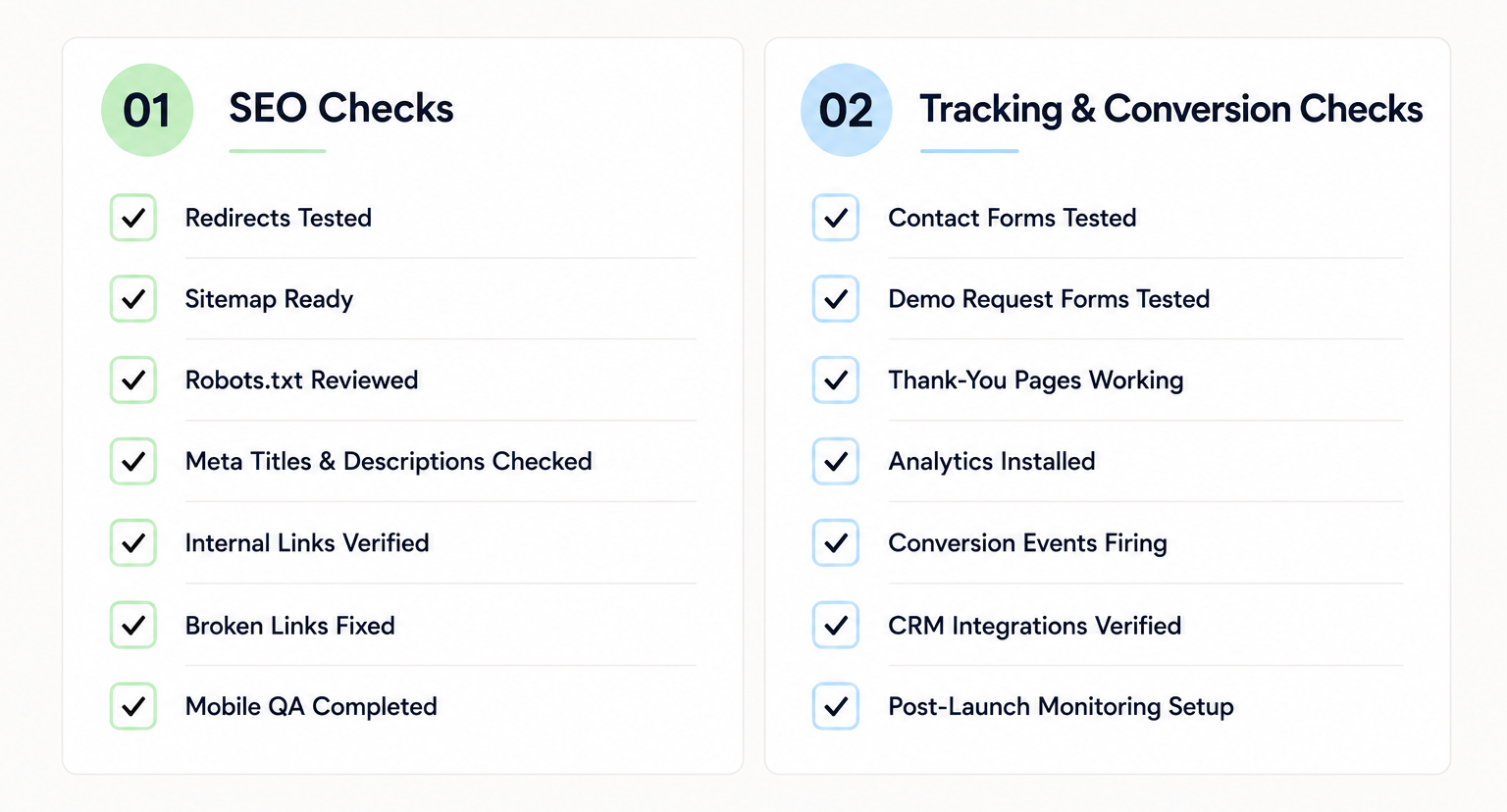
For higher-risk migrations, a launch readiness review can help catch issues before the site goes public.
Monitor After Launch And Fix Issues Quickly
Even a careful migration needs post-launch monitoring. Some short-term movement in rankings or traffic can happen after a platform change, especially if URLs, content, design, or internal linking changed at the same time.
The important thing is to know what is normal and what needs action.
In the first few weeks after launch, monitor:
- Google Search Console coverage and indexing.
- 404 errors.
- Redirect issues.
- Organic landing page traffic.
- Rankings for important terms.
- Form submissions and lead quality.
- Sitemap submission and crawl activity.
Compare the new Webflow site against the WordPress baseline you captured before migration. If a high-value page loses visibility, check whether the URL changed, the redirect works, metadata was preserved, internal links still point to it, and the page can be indexed.
Know when to get help
Get help quickly if:
- Organic traffic drops sharply.
- Important URLs return 404 errors.
- Redirects are missing or point to weak replacement pages.
- Indexed pages disappear from Search Console.
- Forms, tracking, or CRM integrations stop working.
- The new CMS structure makes content updates harder than expected.
If losing organic traffic or lead tracking for even a few weeks would create a business problem, treat the migration as a specialist project rather than a simple Webflow rebuild.
Conclusion
A WordPress to Webflow migration can give your marketing team a cleaner, easier site to manage. But if your WordPress site already drives organic traffic or leads, the migration should be planned around SEO preservation from the start.
Protect the URLs that matter. Map content and CMS fields before building. Recreate metadata deliberately. Test redirects, forms, analytics, and indexation before launch. Then monitor the site closely once Webflow is live.
Quovo helps SaaS and B2B teams plan SEO-safe WordPress to Webflow migrations that protect content, redirects, CMS structure, tracking, and conversion paths before launch
FAQs About WordPress to Webflow Migration
Can you migrate from WordPress to Webflow without losing SEO?
Yes, but SEO preservation depends on the migration process. URLs, content, metadata, redirects, internal links, indexation, and tracking need to be planned before launch. Webflow can be SEO-friendly, but it does not automatically protect the value of the old WordPress site.
Do I need redirects when moving from WordPress to Webflow?
Yes, if any URLs change. A 301 redirect tells users and search engines where the old page moved. High-value URLs with traffic, backlinks, rankings, or conversions should be mapped and tested carefully before launch.
Should I keep the same URLs when moving from WordPress to Webflow?
Keep the same URLs when they are clean, useful, and already performing well. If the old URL structure is messy or no longer fits the site, changing URLs can make sense, but only with a complete redirect map and careful testing.
What happens to WordPress blog posts when moving to Webflow?
WordPress blog posts can be moved into Webflow CMS, but the fields need to be mapped first. Titles, slugs, featured images, authors, categories, tags, metadata, and internal links may all need review. This is especially important if SEO data lives in WordPress plugins.
Is Webflow better than WordPress for SEO?
Webflow can be excellent for SEO when the site is structured well, loads cleanly, and gives the marketing team control over important fields. But the migration process matters more than the platform comparison. A poorly planned move can hurt SEO on any platform.
How long does a WordPress to Webflow migration take?
It depends on the size of the site, the number of CMS items, the complexity of the design, the amount of SEO risk, and the integrations involved. A small marketing site may move quickly. A site with a large blog, complex taxonomy, redirects, forms, and tracking needs more planning.
Does moving from WordPress to Webflow cause website downtime?
Not if the migration is planned properly. Most WordPress to Webflow migrations are built and tested on a staging environment before the final launch. The new Webflow site can be fully reviewed, including redirects, forms, analytics, and SEO settings, before DNS changes are made. When launch preparation is handled correctly, downtime is usually minimal or avoided entirely.
What happens to WordPress SEO plugins like Yoast or Rank Math after migration?
SEO plugins do not move to Webflow, so any important metadata stored inside them needs to be reviewed and recreated. This typically includes SEO titles, meta descriptions, Open Graph settings, schema configurations, canonical tags, and other custom SEO fields. Before launch, it is important to export or document these settings so valuable SEO data is not lost during the migration.